So, I have to say that this is a long time coming.
I’ve hardly ever used docker in my daily life, because I don’t build anything and arn’t maintaining any systems.
But now that I am maintaining openweightmodels, which uses docker extensively, I’ll have to really brush up on what it’s doing.
So here goes.
How docker works
The core idea of docker revolves around images. Images are static files that you can download - think of them like binaries used to install a certain software.
You can download images from anywhere, or you can pull them from docker hub via:
docker pull docker/welcome-to-docker
The docker desktop app provides a nice GUI to interact with Docker. Once you download images, you can find them in the Images section of the app.
From the image, you can start a container
The container is the actual application or service itself. It’s like a mini-VM - or a frontend or backend service. The key action here is run. You run an image. Running an image spawns a container from the image:
docker run path_to_image
Now, you often use it in the context of several important flags, such as:
docker run --detach --name welcome --publish 8080:80 docker/welcome-to-docker
In this case, we run in detach mode, give it a name, specify the port mapping between host and container, and the name of the image to run.
It’s a bit of a mouthful, but there you have it.
Now, if you want to stop the service, there’s two commands you can do:
docker stop: this pauses/halts the container. The status isExited, data preserved, and restartable withdocker startdocker rm: container is destroyed and deleted. Data inside deleted, not restartable - the instance is gone, you need to spin up a brand new instance withdocker run
So far so good? From images, you start containers. Containers are mini environments for apps. You can stop, or delete containers.
Now, often times, you don’t just need to start one app. Think of a typical development workflow, where you need to start a frontend service, and backend service, and some databases. In docker parlace, each of them can be containers that you start. You need a system of orchestrating them: and that system is Docker Compose.
compose.yaml
The compose.yaml file is your full stack app orchestration definition. It looks something like this.
compose.yaml
 1
 2
 3
 4
 5
 6
 7
 8
 9
10
11
12
13
14
15
16
17
18
19
20
21
22
23
24
25
26
27
28
29
30
31
32
33
34
35
36
37
38
39
40
41
42
43
44
45
46
47
48
49
50
51
52
53
54
55
56
57
58
59
60
61
62
63
64
65
66
67
68
69
70
71
72
services:
  proxy:
    image: traefik:v3.6
    command: --providers.docker
    ports:
      - 80:80
    volumes:
      - /var/run/docker.sock:/var/run/docker.sock

  backend:
    build:
      context: ./
      target: backend-dev
    environment:
      MYSQL_HOST: mysql
      MYSQL_USER: root
      MYSQL_PASSWORD: secret
      MYSQL_DB: todos
    depends_on:
      mysql:
        condition: service_healthy
    develop:
      watch:
        - path: ./backend/src
          action: sync
          target: /usr/local/app/src
        - path: ./backend/package.json
          action: rebuild
    labels:
      traefik.http.routers.backend.rule: Host(`localhost`) && PathPrefix(`/api`)
      traefik.http.services.backend.loadbalancer.server.port: 3000

  client:
    build:
      context: ./
      target: client-dev
    develop:
      watch:
        - path: ./client/src
          action: sync
          target: /usr/local/app/src
        - path: ./client/package.json
          action: rebuild
    labels:
      traefik.http.routers.client.rule: Host(`localhost`)
      traefik.http.services.client.loadbalancer.server.port: 5173

  mysql:
    image: mysql:9.3
    volumes:
      - todo-mysql-data:/var/lib/mysql
    environment:
      MYSQL_ROOT_PASSWORD: secret
      MYSQL_DATABASE: todos
    healthcheck:
      test: ["CMD", "mysqladmin", "ping", "-h", "localhost"]
      interval: 5s
      timeout: 5s
      retries: 5

  phpmyadmin:
    image: phpmyadmin
    environment:
      PMA_HOST: mysql
      PMA_USER: root
      PMA_PASSWORD: secret
    labels:
      traefik.http.routers.phpmyadmin.rule: Host(`db.localhost`)
      traefik.http.services.phpmyadmin.loadbalancer.server.port: 80

volumes:
  todo-mysql-data:
Now, how to precisely define the compose.yaml file is a topic for a future post. But once you have the definition of the compose file, you can run the following to start a lot of containers at once:
docker compose up --build --detach
The key command here: docker compose up
This reads the compose.yaml file, and then starts the services.
The build option builds the frontend and API images. Compose also pulls the images from supporting services and connects the containers.
After running that, you will see the following:
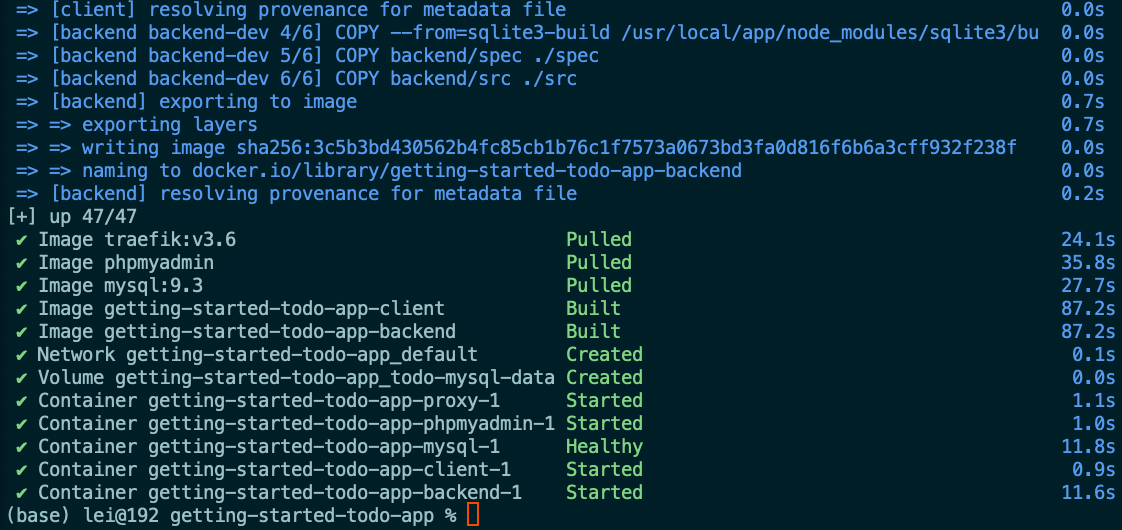
You notice that several containers are started together.
IN addition, you can see that there is an image hash 3c5b... that’s being writen. That is actually the image built for the backend services, that you can actually see in the Docker GUI:

To see all the containers that are started, you can run:
docker compose ps

Finally, you can also also build an image that packages everything together
But first, you need to have a Dockerfile. The dockerfile is a set of instructions for building the image.
Example Dockerfile
  1
  2
  3
  4
  5
  6
  7
  8
  9
 10
 11
 12
 13
 14
 15
 16
 17
 18
 19
 20
 21
 22
 23
 24
 25
 26
 27
 28
 29
 30
 31
 32
 33
 34
 35
 36
 37
 38
 39
 40
 41
 42
 43
 44
 45
 46
 47
 48
 49
 50
 51
 52
 53
 54
 55
 56
 57
 58
 59
 60
 61
 62
 63
 64
 65
 66
 67
 68
 69
 70
 71
 72
 73
 74
 75
 76
 77
 78
 79
 80
 81
 82
 83
 84
 85
 86
 87
 88
 89
 90
 91
 92
 93
 94
 95
 96
 97
 98
 99
100
101
102
103
104
105
106
107
108
109
110
###################################################
# Stage: base
#
# This base stage ensures all other stages are using the same base image
# and provides common configuration for all stages, such as the working dir.
###################################################
FROM node:22 AS base
WORKDIR /usr/local/app

################## CLIENT STAGES ##################

###################################################
# Stage: client-base
#
# This stage is used as the base for the client-dev and client-build stages,
# since there are common steps needed for each.
###################################################
FROM base AS client-base
COPY client/package.json client/package-lock.json ./
COPY .npmrc .
RUN npm ci
COPY client/.eslintrc.cjs client/index.html client/vite.config.js ./
COPY client/public ./public
COPY client/src ./src

###################################################
# Stage: client-dev
#
# This stage is used for development of the client application. It sets
# the default command to start the Vite development server.
###################################################
FROM client-base AS client-dev
CMD ["npm", "run", "dev"]

###################################################
# Stage: client-build
#
# This stage builds the client application, producing static HTML, CSS, and
# JS files that can be served by the backend.
###################################################
FROM client-base AS client-build
RUN npm run build


###################################################
################  BACKEND STAGES  #################
###################################################

###################################################
# Stage: sqlite3-build
#
# Compiles the sqlite3 native binary in an isolated stage so that the
# backend stages can use ignore-scripts=true without breaking sqlite3.
# Only the compiled artifact is copied across — the scripts never land
# in any shipped image layer.
###################################################
FROM base AS sqlite3-build
COPY backend/package.json backend/package-lock.json ./
COPY .npmrc .
RUN npm ci && cd node_modules/sqlite3 && ../.bin/node-gyp rebuild

###################################################
# Stage: backend-base
#
# This stage is used as the base for the backend-dev and test stages, since
# there are common steps needed for each.
###################################################
FROM base AS backend-dev
COPY backend/package.json backend/package-lock.json ./
COPY .npmrc .
RUN npm ci
COPY --from=sqlite3-build /usr/local/app/node_modules/sqlite3/build \
    ./node_modules/sqlite3/build
COPY backend/spec ./spec
COPY backend/src ./src
CMD ["npm", "run", "dev"]

###################################################
# Stage: test
#
# This stage runs the tests on the backend. This is split into a separate
# stage to allow the final image to not have the test dependencies or test
# cases.
###################################################
FROM backend-dev AS test
RUN npm run test

###################################################
# Stage: final
#
# This stage is intended to be the final "production" image. It sets up the
# backend and copies the built client application from the client-build stage.
#
# It pulls the package.json and package-lock.json from the test stage to ensure that
# the tests run (without this, the test stage would simply be skipped).
###################################################
FROM base AS final
ENV NODE_ENV=production
COPY --from=test /usr/local/app/package.json /usr/local/app/package-lock.json ./
COPY .npmrc .
RUN npm ci --production && \
    npm cache clean --force
COPY --from=sqlite3-build /usr/local/app/node_modules/sqlite3/build \
    ./node_modules/sqlite3/build
COPY backend/src ./src
COPY --from=client-build /usr/local/app/dist ./src/static
EXPOSE 3000
CMD ["node", "src/index.js"]
Once you have the docker file, you can build the image with this command:
docker build --tag xiaogit00/getting-started-todo-app .
The --tag flag gives the image a name, and the username prefix identifies where the image will be stored on Docker Hub. . tells Docker to find the Dockerfile and app source in the current directory.
Now, having built the image, you can of course run it:
docker run --detach --name todo --publish 8080:3000 xiaogit00/getting-started-todo-app
Lastly, logging in, and cleaning up
These are the commands to log in and share the images through the registry:
| |
Once you share it, it’ll be publicly available through docker hub.
These are the commands for cleaning up:
docker rm --force todo –> remove the container
docker compose down --volumes –> completely stops your running containers, deletes them, and permanently deletes the storage volumes associated with the project.
So that’s about it!
To recap
docker pull imagePath - pulls the imagedocker run imagePath - starts the container
docker compose up - starts all containers in compose.yamldocker compose ps - checks the containers that are updocker build - builds an image from a Dockerfiledocker rm containerName - removes a containerdocker compose down --volumes - stops all running containers and deletes them